
MemNet has a reserved attribute called Email Marketing Subscription List that is used as topics for marketing email distributions that you perform. The Unsubscribe option on those distributions will allow the recipient to unsubscribe from one or many of those topic lists. Note: The Unsubscribe to All Marketing By fields held on a person, if ticked will unsubscribe a person from all topic lists.
- Configure your Email Marketing Subscription List
- Enable self service management of Email Marketing Subscription List
- Creating a distribution
- Including an unsubscribe link in your email
- What happens when the recipient clicks the unsubscribe link?
Configure your Email Marketing Subscription List
You can add a subscription list to MemNet or manage existing lists under Administration / System Configuration / Attributes by clicking the Edit Marketing Subscription List button at the top of the page.
Here you can manage the lists you want available in the system by clicking the Edit button and adding, deleting or modifying the existing options.
Remember to click Update when you are done.
Note that all people are subscribed to a new list by default.
Enable self service management of Email Marketing Subscription List
You can allow people to manage the email marketing lists they are subscribed to within Member Self Service. To activate this go to Administration / System Configuration / Company Settings / Self Service on the options tab you can enable View an/or Edit for Can Manage Email Subscription Lists.
Creating a distribution
When creating a distribution via either Mail Generation or an event you will be asked Is this a marketing communication? If you answer yes you will be required to select one or more email marketing subscription list under What Type of Marketing Material is this?
If you select a list(s), only those people who have subscribed to all of those lists will be returned by the search on subsequent pages. That is anyone who has unsubscribed from one of the selected lists will NOT receive this distribution.
Including an unsubscribe link in your email
In both the Simple Editor and the Pro Editor you will find an unsubscribe merge field. In the body of the email, this merge field will look like [[UNSUBSCRIBE]]. You add this in the same way as any other merge field, but it is displayed a little differently.
Rather than displaying text about the member, this merge field will display as the work Unsubscribe and be hyperlinked to a unique URL to unsubscribe the recipient of the email with a single click. If you prefer, you can use this merge field in a sentence like:
"If you no longer wish to receive these emails, please [[UNSUBSCRIBE]]"
Which will appear in your email as:
"If you no longer wish to receive these emails, please Unsubscribe"
What happens when the recipient clicks the unsubscribe link?
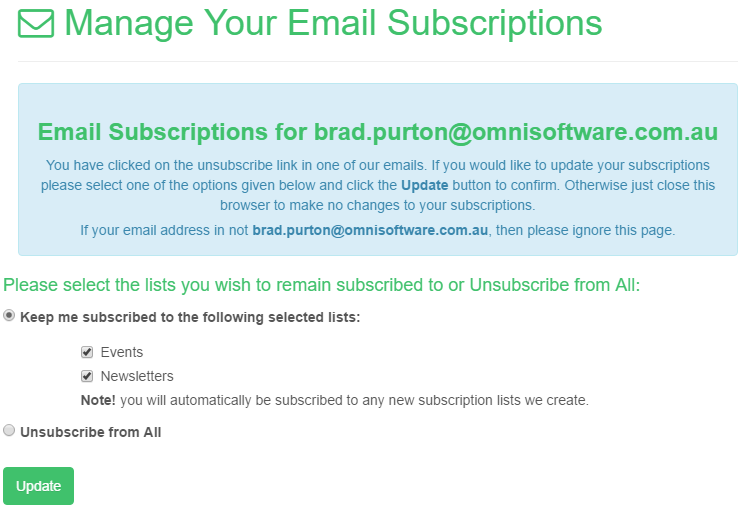
When someone receives an email with an unsubscribe link in it and email marketing subscription lists are set up they will see a screen like the one below when they click on the link. From here they can select the list(s) they want to unsubscribe from before updating their profile.
Comments
0 comments
Please sign in to leave a comment.