
To configure page permissions:
- Go to the required page
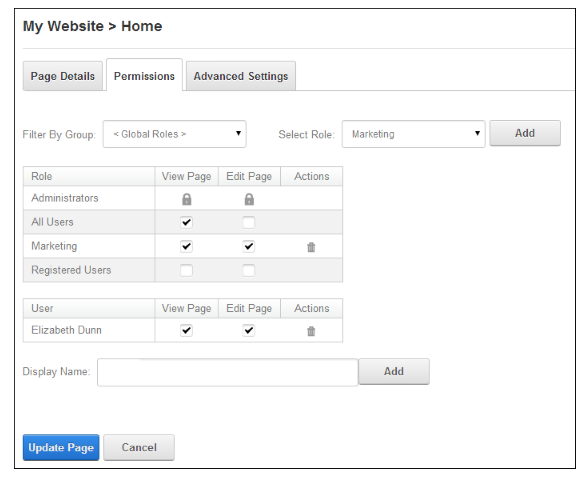
- Select ‘Page Permissions’ from the ‘Edit ‘ Page menu of the ControlBar. This displays the ‘Permissions’ tab that shows the current page permissions for Administrators, All Users, Registered Users and any other role user who has been granted permission to this page.
- To remove ALL permissions for a user or role, click the ‘Delete’ trash icon in the ‘Actions’ column.
- To only modify permissions for roles and users that are displayed on the page, skip to step 6.
- To set permissions for individual users that aren’t displayed, begin entering the user’s display name in to the ‘Display Name’ text box and select the matching record. Repeat to add additional users and then click the ‘Add’ button.
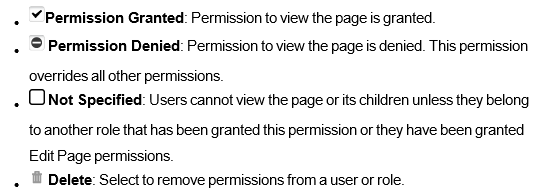
- In the ‘View Page’ column, click on the check box beside a user/display name repeatedly until the correct permission is displayed.
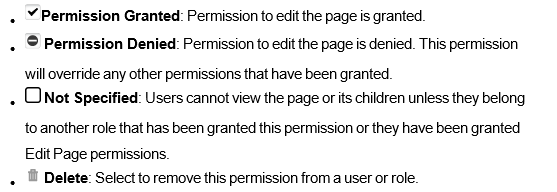
7. In the ‘Edit Page’ column, click on the check box beside a user/display name repeatedly until the correct permission is displayed
8. Click the ‘Update Page’ button.
Comments
0 comments
Please sign in to leave a comment.