
Lookup Pricing enables you to configure a subscription’s pricing based on a number custom field table. Instead of applying a fixed rate to a subscription, members can be charged according to what number custom field group they belong in.
An example of this is if you want to charge members a different rate for the same subscription because they earn a higher income. You will have to have assigned a salary custom field against each member, however, by using the Lookup Pricing function you could configure the subscription type to charge different rates for different salary amounts.
To setup Lookup Pricing:
The first thing we need to do is ensure that you have ‘Subscription Calculations’ enabled in your MemNet settings.
To check this:
Go to Administration/System Configuration/Company Settings.
Scroll down until you find ‘Enable Subscription Calculations’.
Ensure this box is ticked if you would like to setup Lookup Pricing
The second stage is to now configure and apply the Lookup Pricing table to a subscription. To do this:
- Go to Administration/System configuration/Subscriptions from within MemNet.
Here you can either create a new subscription or edit an existing subscription to access the Lookup Pricing options.
For this example, we will create a new subscription.
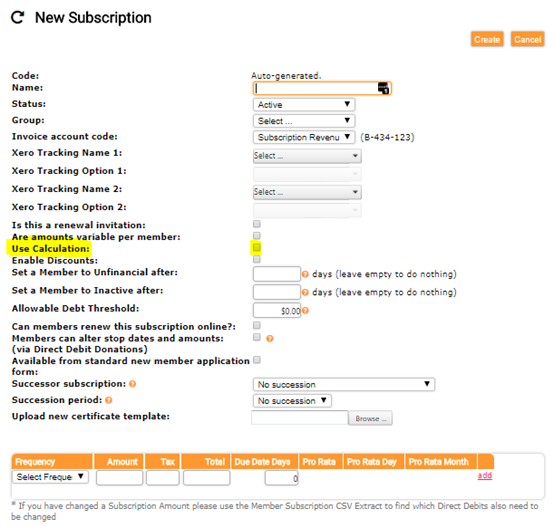
- Tick the box ‘Use Calculation’.
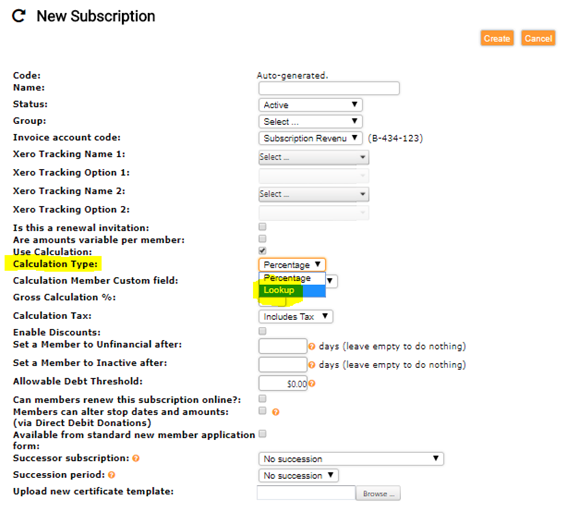
- From the drop-down box in ‘Calculation Type’, select ‘Lookup’.
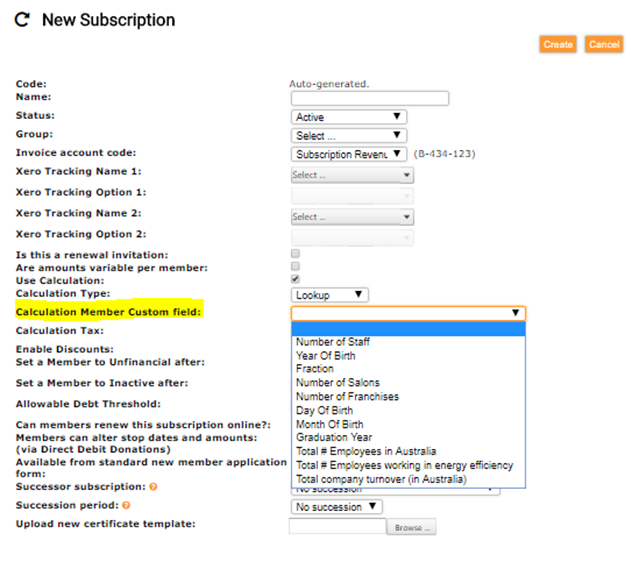
- Now select from the ‘Calculation Member Custom Field’ drop-down box which custom field you want the subscription to have its pricing based on. Only custom fields of type number are displayed. These are configured under Administration / System Configuration / Custom Fields.
- You will notice at the bottom of the page that there is now a ‘Look Up Pricing Table’ section.
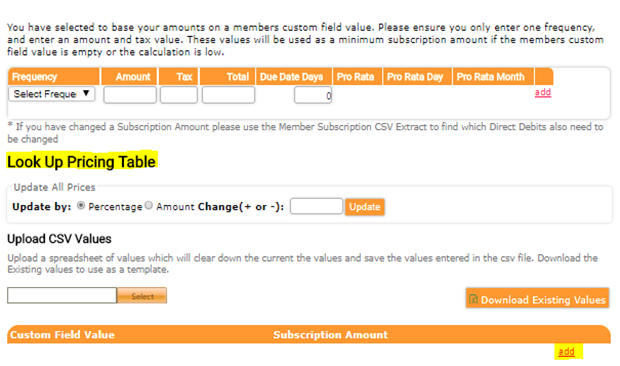
- You will now need to create the pricing structure according to the number custom field value. Click the ‘Add’ text to begin entering how you want your pricing to be determined.
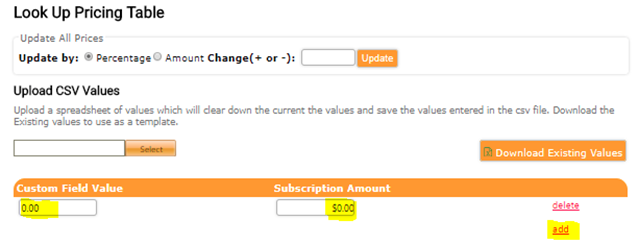
- Here you will enter the custom field value and apply the subscription amount towards it.
For example, we can set Lookup Pricing based on a member’s salary.
To begin with, you will need to have a custom field of salary applied to the member and a value entered.
If we wanted anyone with a salary of $10,000 or more to be charged $100 for their subscription, we would enter $10,000 in the ‘Custom Field Value’ and $100 in the ‘Subscription Amount’.
If you add to the table and apply a charge of $180 for anyone making $20,000, members earning above $20,000 will be charged $180.
Anyone that is in between $10,000 and $19,999 will only have to pay $100 as they don’t meet the criteria to reach the next subscription amount according to the lookup table.
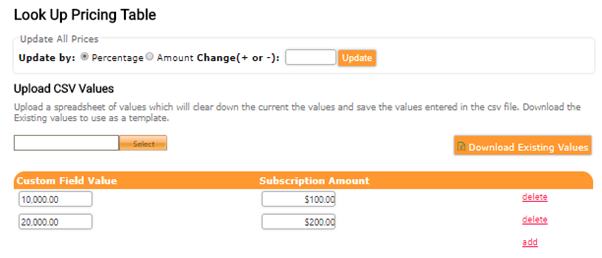
- There is also the option to ‘Upload CSV Values’. This function will give you the ability to upload a CSV file of the values you wish to add to the lookup table instead of using the MemNet interface.
To access the CSV template, use the ‘Download Existing Values’ button to download the template. When saving the file, make sure to save the file as a ‘comma delimited CSV file’.
To upload the CSV, use the ‘Select’ option to browse your directory and upload the file.
- You will also still need to configure the subscription as per usual. You can, however, allocate a $0 subscription and allow the lookup table to apply the only subscription amount. This is the amount that will be charged if the member does not have a value for the selected custom field or if the value entered in the custom field to less that the lowest value in the look up table.
Note: When using the Lookup Pricing Table, you can only have ONE frequency applied to the subscription.
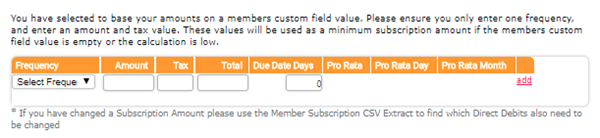
- Remember to Click ‘Create’ to save the new subscription or ‘Update’ to apply any changes you make to an existing subscription.
Comments
0 comments
Please sign in to leave a comment.