
The switch subscription allows you to change a members subscription, optionally their member type and to create a pro-rata refund and/or invoice for the difference to cost to the end of their existing subscription period.
When viewing a member select the Edit button in the top right corner of the Subscription's pane. Switch subscription is available from the third icon in the ‘Active Subscriptions’ pane.
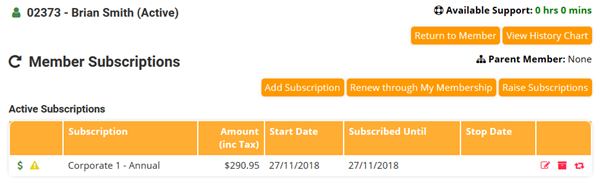
To switch a member subscription:
- Select the new subscription and associated frequency that you want the member to move to.
- Set the date that you want the switch to take effect, it will default to today but can be changed. This is also the date that will be used for any pro-rata calculations.
- Tick the box if you want MemNet to calculate a pro-rata refund and invoice for the difference between the two subscriptions. These will be saved to the member and the difference can be invoiced and paid or a credit used against future invoices.
- The members status can also be updated as part of the process.
- If a member type is associated with the new subscription selected, then the member's member type can be updated.
- Select the reason for the change of subscription. This is the Subscription stop reason.
Click Switch Subscription.
This will pop up a window outlining the changes that will be made to the member based on the options selected.
Click Complete to finish the process.
Comments
0 comments
Please sign in to leave a comment.