
Step One: Navigate to the cloud.google.com website from your browser
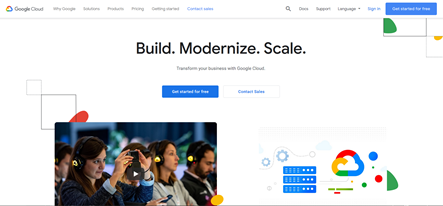
Step Two: In the top right hand corner, Click on the ”Get Started for Free” option in the menu.
Step Three: It will now ask you to sign in with a google account. If you don’t have a google account you can create one by clicking "Create account" or “use another account”.
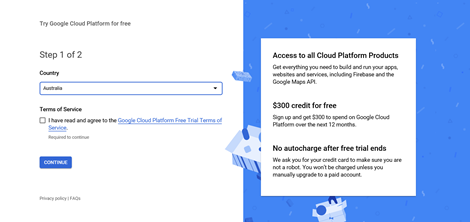
Step Four: You will now be taken to the following page where you setup your free account. After accepting the terms and conditions you will need to enter valid credit card details on the following page to approve the free credit.
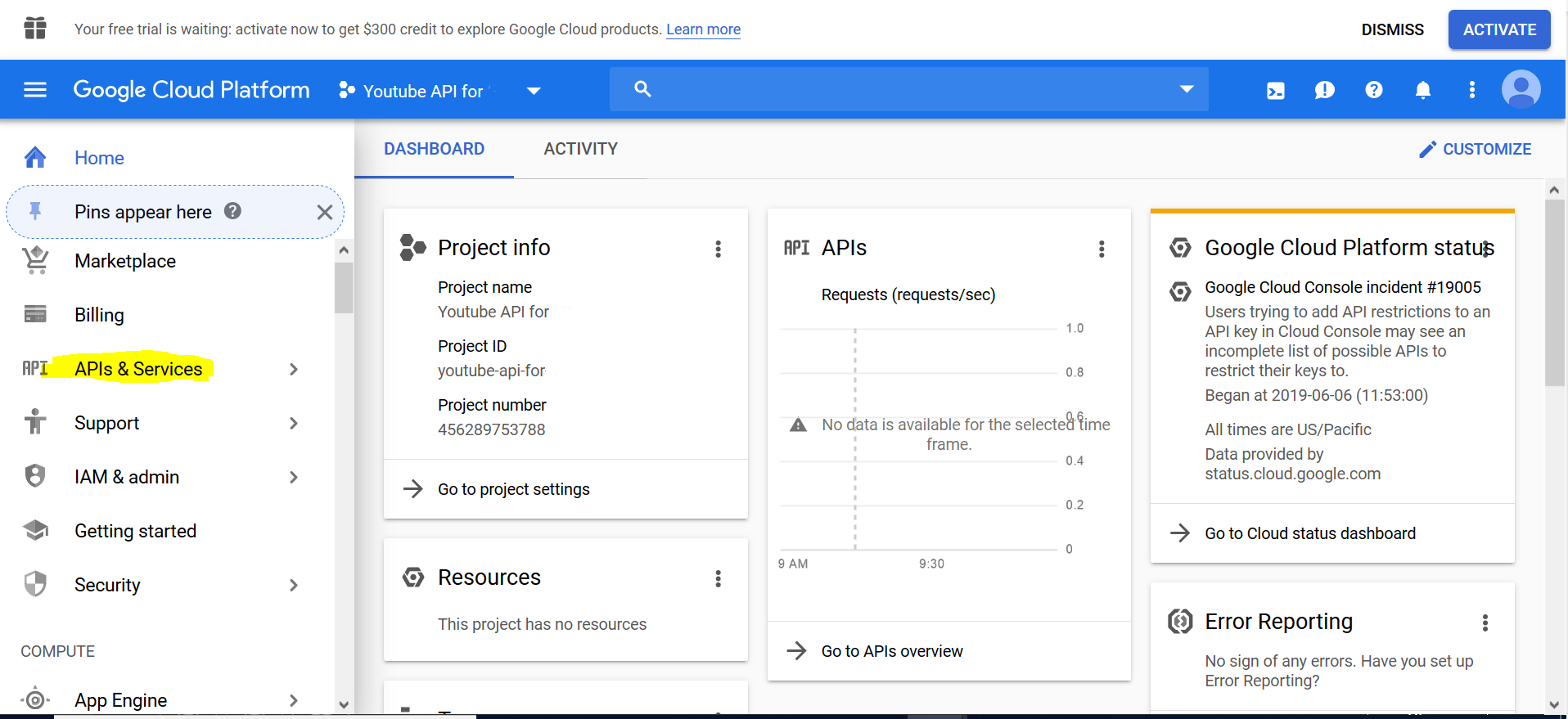
Step Five: Once setup and authorised, you should be taken to the ‘Console’ page, now click on “APIs & Services” from the menu.
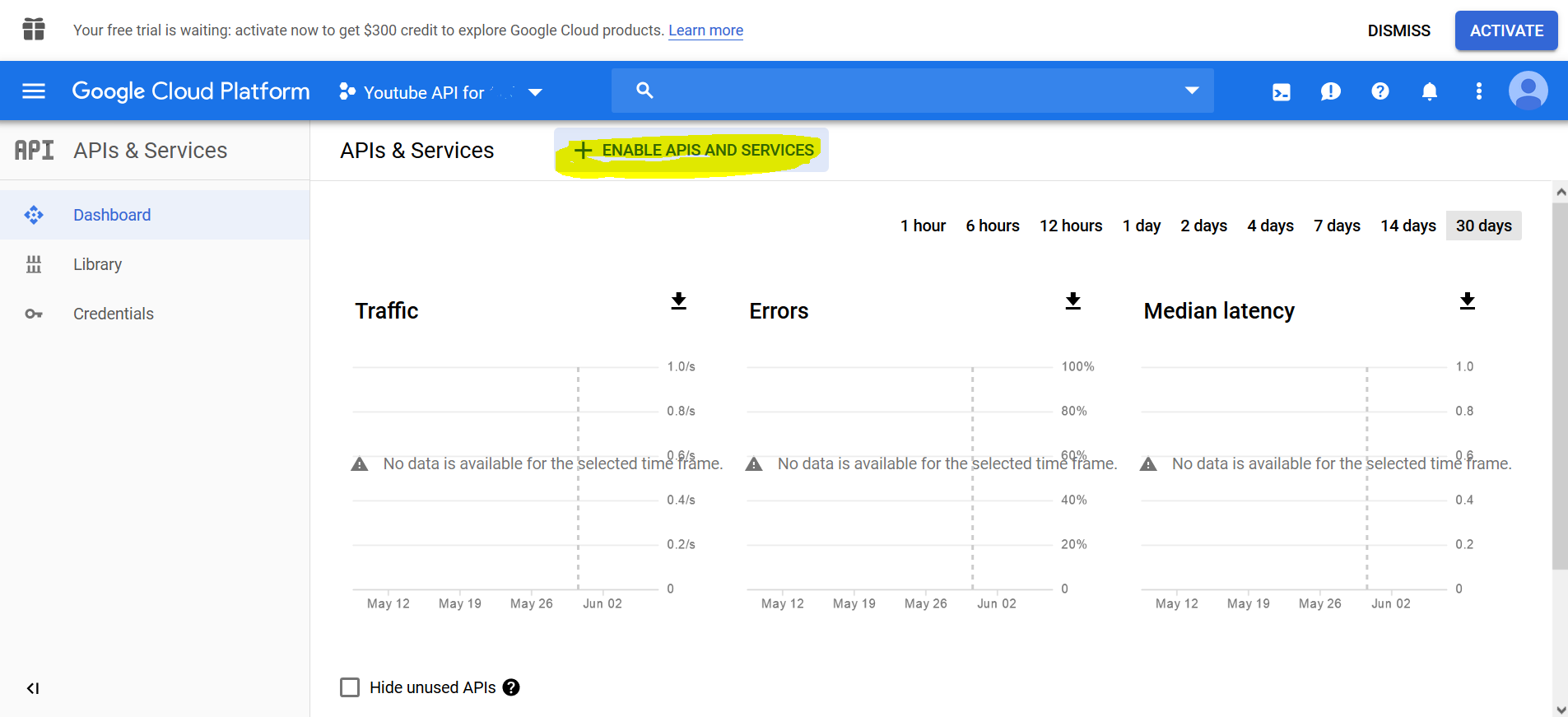
Step Six: Click on “Enable APIs and Services”
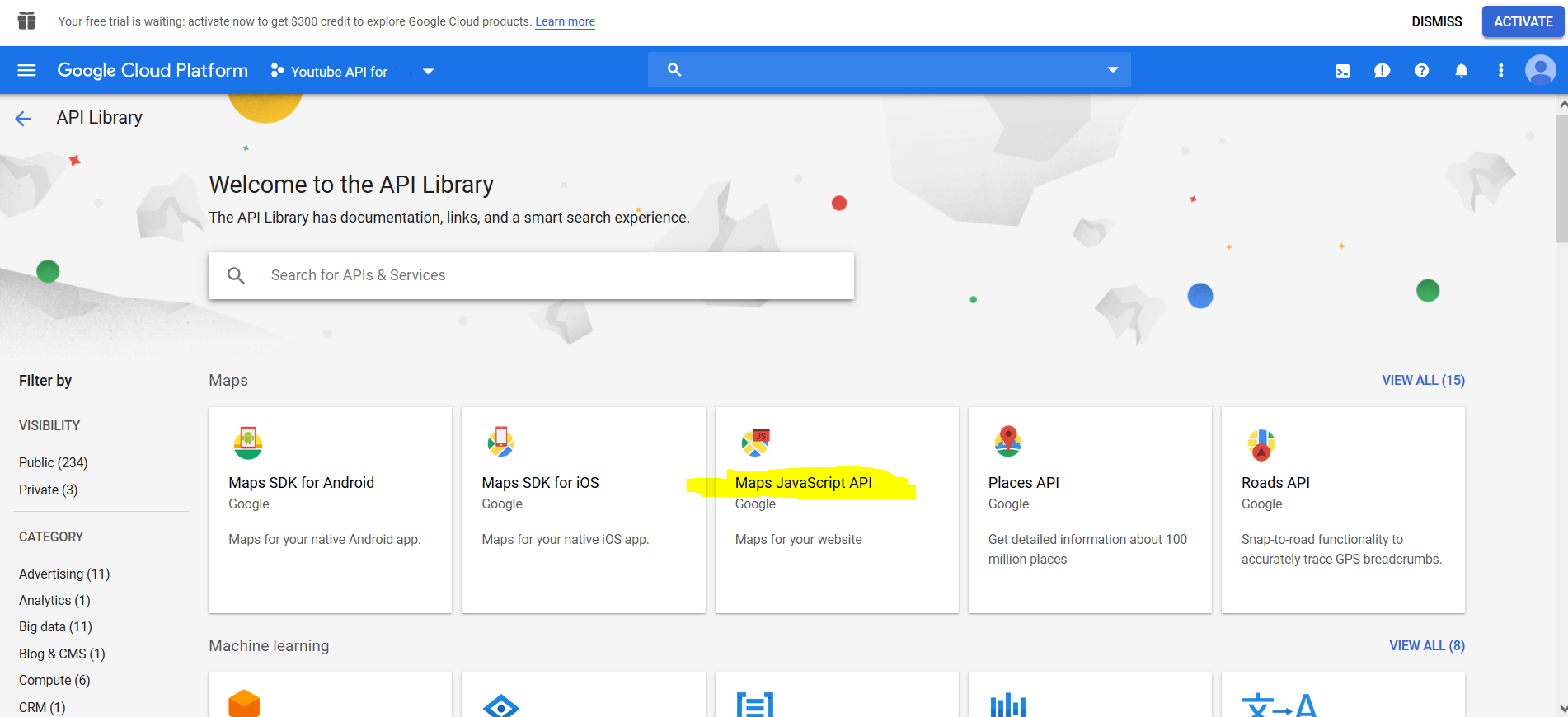
Step Seven: From the API and Services page, click on the “Maps Javascript API” tile or search for “Maps Javascript API in the search field.”
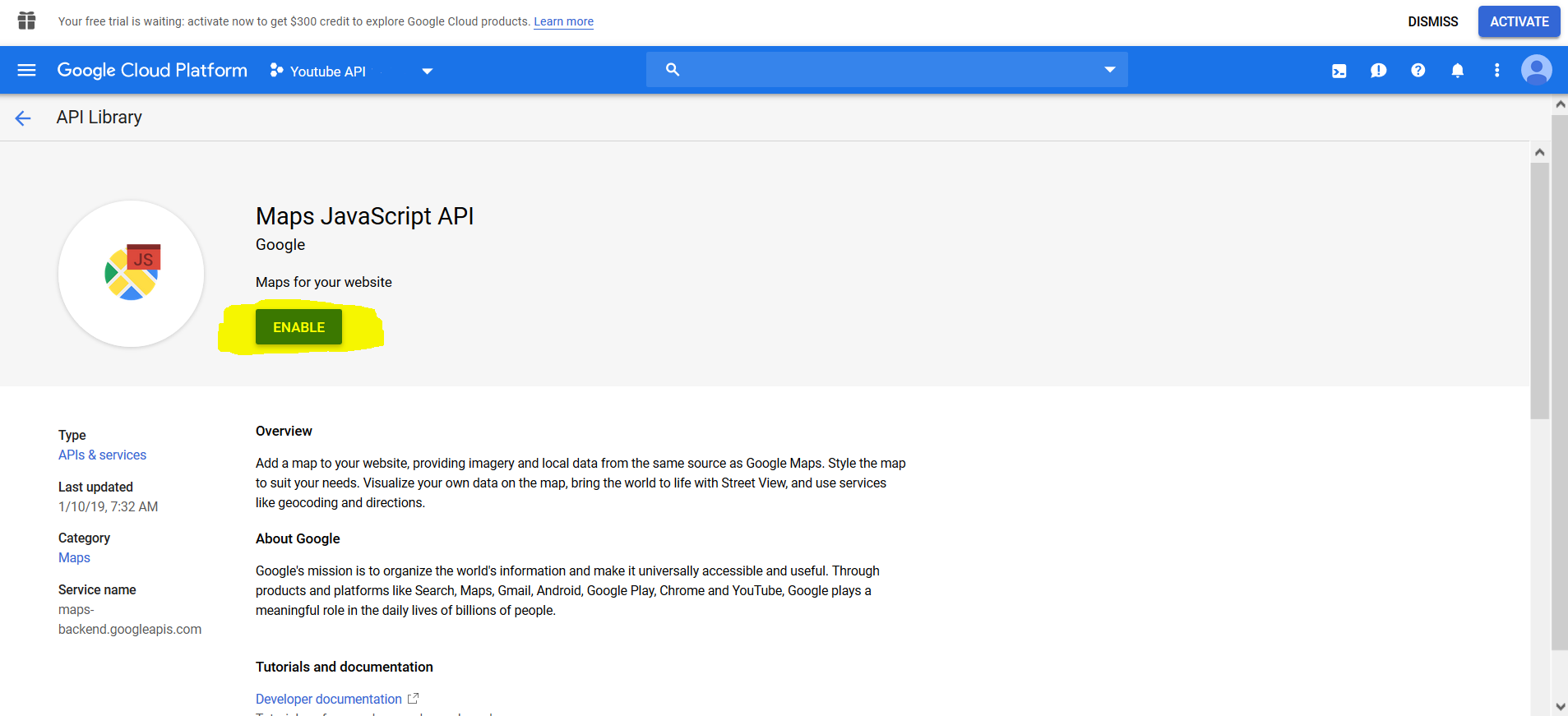
Step Eight: Click on the button “Enable”.
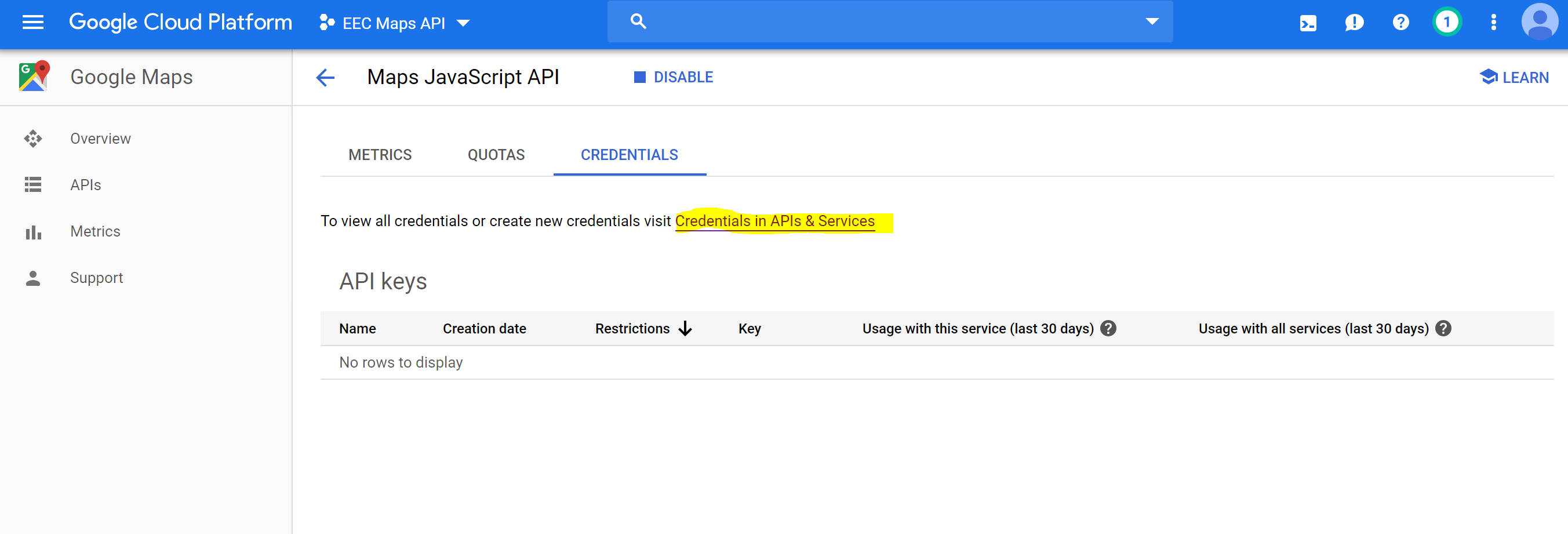
Step Nine: Now Click on the “Credentials” tab and click the link "Credentials in APIs & Services"
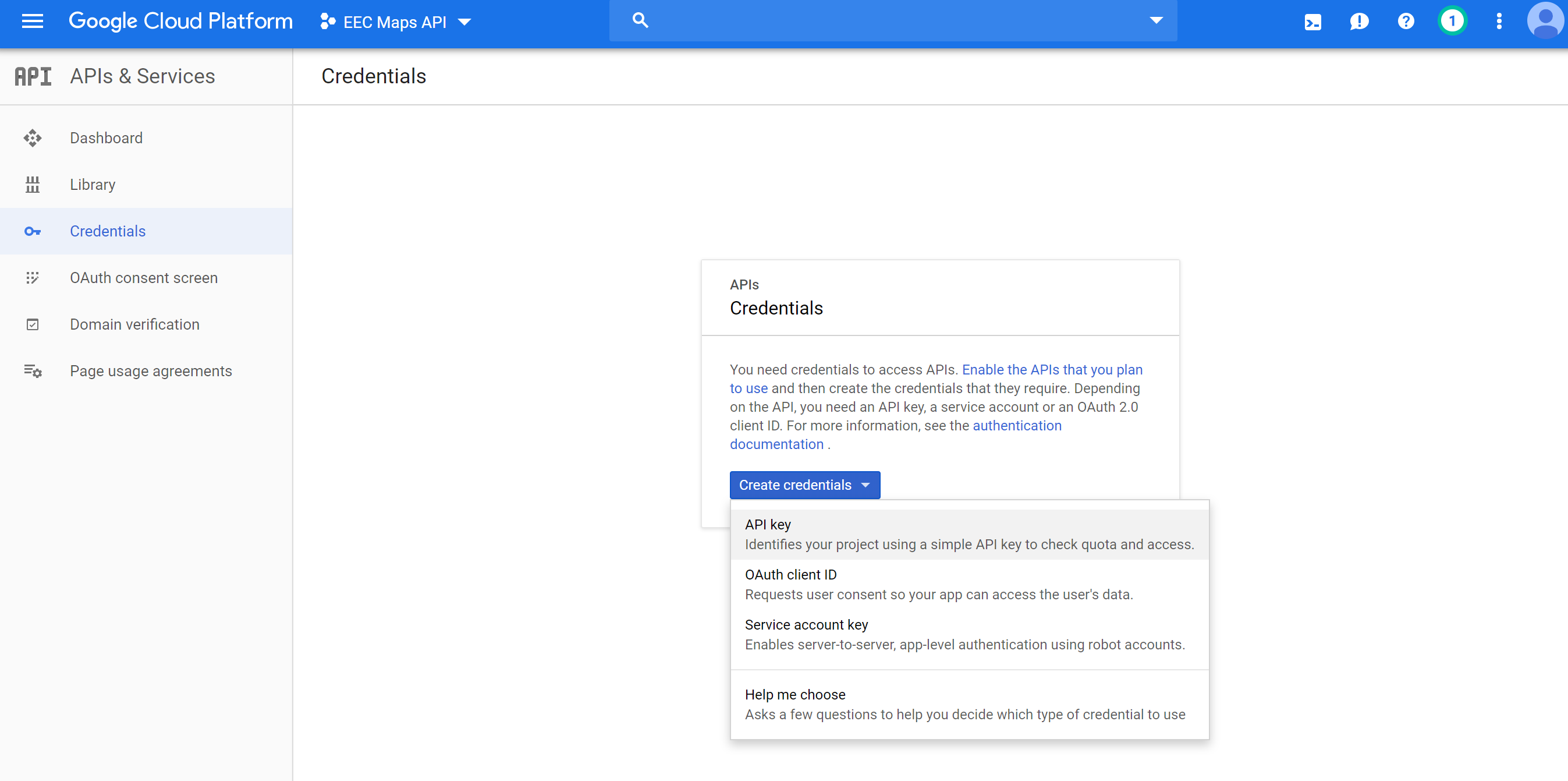
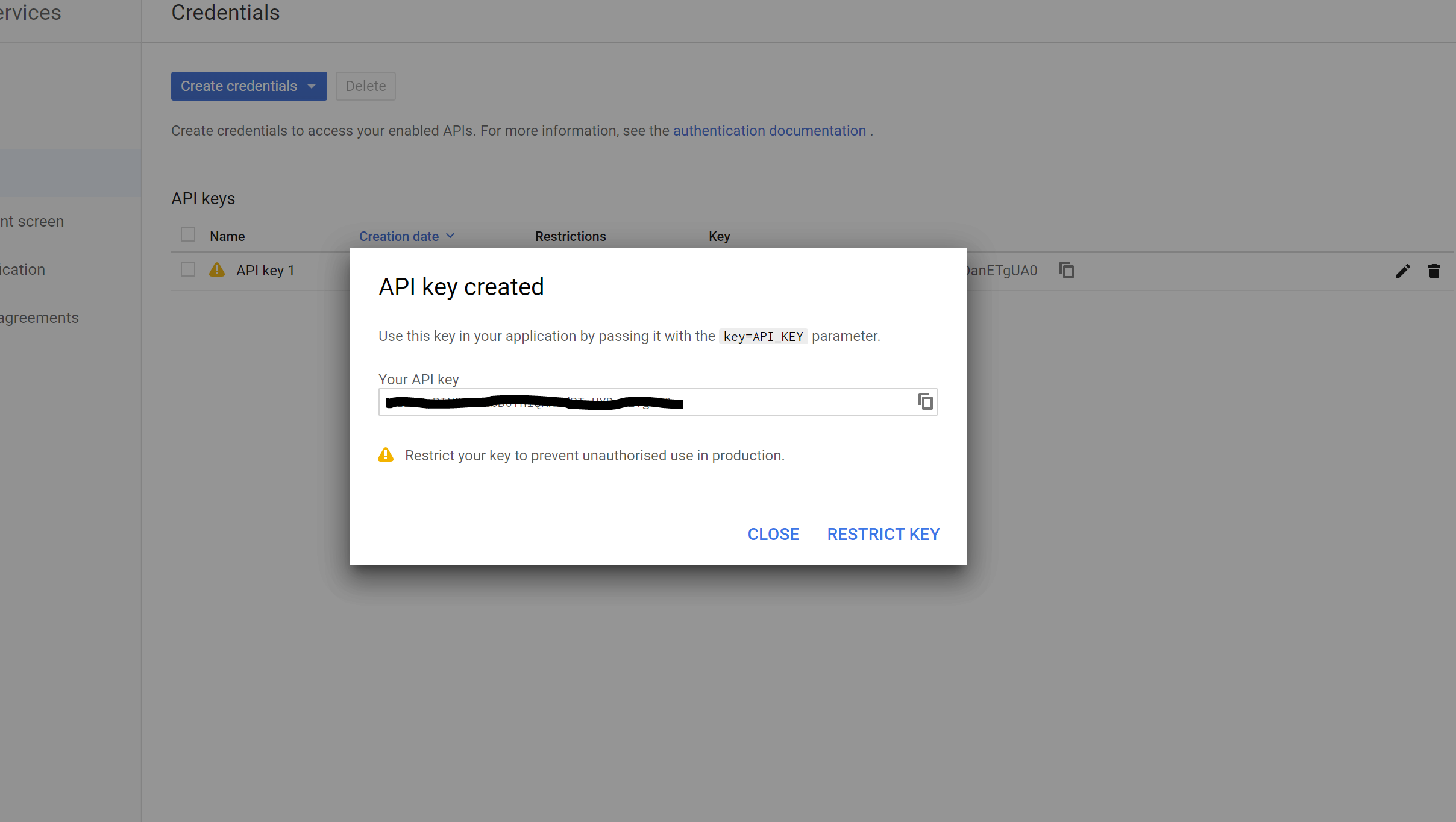
Step Ten: Click the drop-down arrow on the right of the Create credentials button and select the first options (API Key).
Step Eleven: Copy the ‘Your API Key’
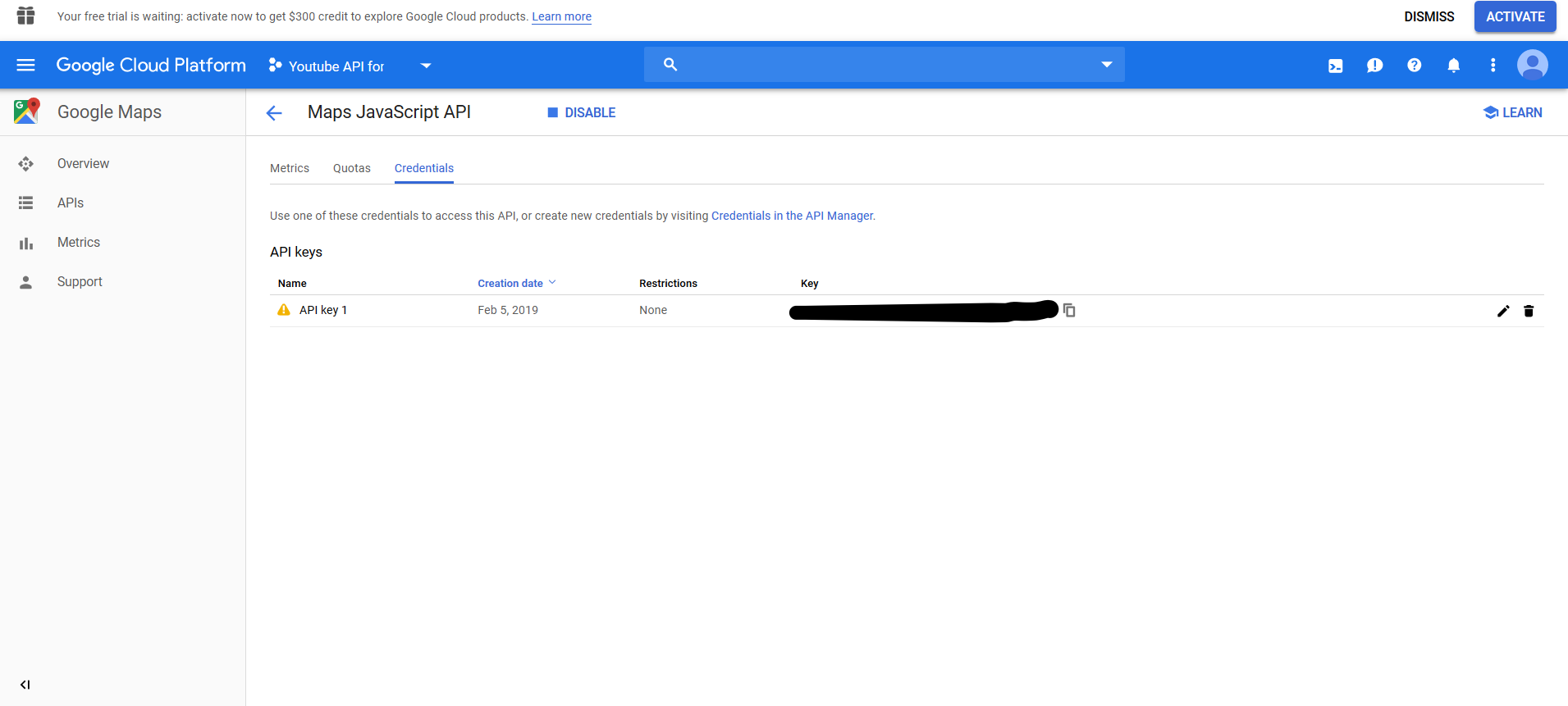
Or you can retrieve the API key from the list of credentials once it has been created.
Step Twelve: You now need to enable the Geocoding API and Geolocation API. To do this use the searchbar at the top of the page and search for "Geocoding". You should be taken to the Geocoding API where you need to click "Enable" to activate it. You will need to repeat this step for the Geolocation API too.

Step Thirteen: Once you have enabled Geocoding and Geolocation, please send your API key to us in an email and we will add it to your instance of MemNet.
For added security, consider restricting our API key as follows:
- Application Restriction: HTTP Referrers
- Website Restrictions: https://[client].memnet.com.au/* where client is what appears in your MemNet URL. Add any other URLs you want to use the API key on.
- API Restrictions: Limit to the API's you have enabled above.
Comments
0 comments
Article is closed for comments.