
You can market your event to people who are not yet attending your event or send out reminders or important information to people already registered to your event us SMS or email.
Send SMS to people registered for the event
This would typically be used for event reminders or where you need to communicate with people who have booked to the event.
- Click on the Communications tab.
- Select the radio button SMS
- Select the radio button Do you wish to only email people booked on/attending this Event?
- Identify accordingly if your message is a marketing communication
- Select from the drop menu a Registration/Option or All. Attendees with this registration / option will receive this email.
- Optionally select to Include people marked as 'Do Not Contact By Email' This is check by default, uncheck it to exclude people marked as 'Do Not Contact By Email'.
- Optionally select to Send to all Attendees If checked all attendees will receive the email, if un-checked the email will only go those who made the Booking
- If you select to Send to all Attendees you will also be given the option to Include event guests who have registered with an email address. While you may have multiple people linked to a membership, you may also have 'Event Guests' who are linked to the membership by attending an event as a guest of that membership. By default we do not send communications to these people but you can include them in this email by checking this option.
- Optionally select to Only send to people who have not entered their firstname and lastname, this will include ONLY those bookings where an attendees names was NOT supplied during the booking process. Typically used to remind those bookers to provide names for all attendees.
- Click Create Distribution button. You will then be taken to the Distribution Screen.
Send SMS to people not registered to the event
This would typically be used to promote an event some bookings have been received. It can exclude those who have already booked and/or are already attending the event.
- Click on the Communications tab.
- Select the radio button SMS
- Select the radio button Do you wish to create a distribution to a selection of people in your database
- You will be prompted to select a saved search:
- You can create a new saved search using the search form, before saving it to the list
- Note the additional search criteria Exclude Members and Attendees already registered to this Event this must be selected to exclude those already registered to this event.
- Once you have selected a saved search or created a new saved search click the Use Selected Search button to create the distribution and to be taken to the Distribution screen.
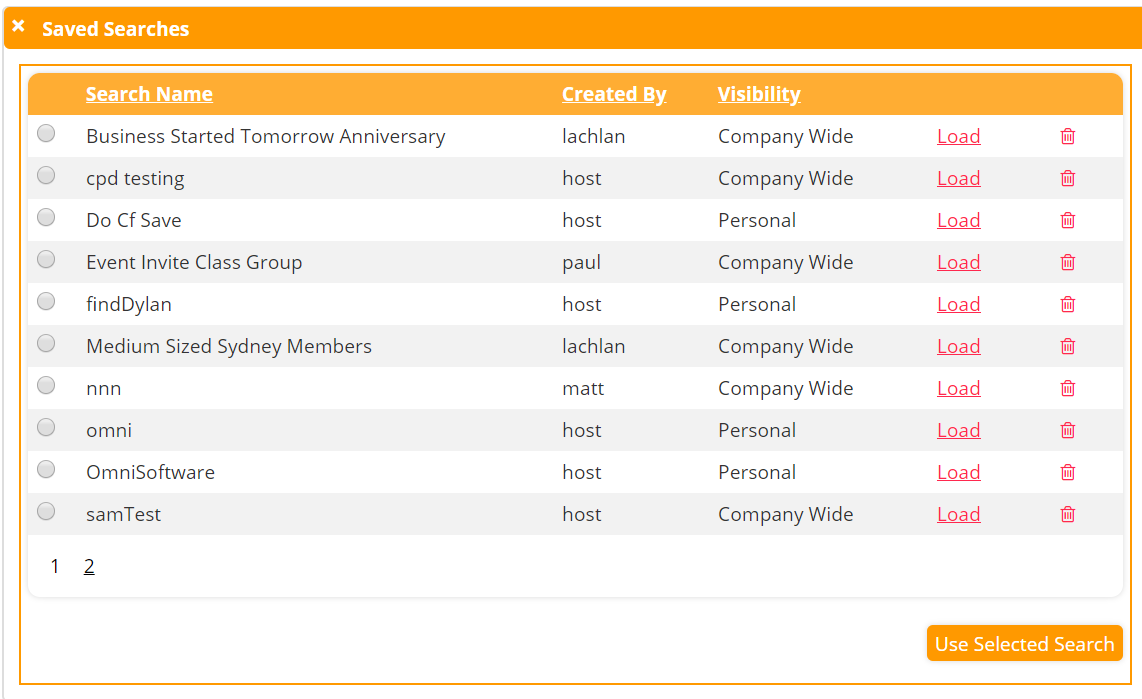
- Alternatively you can open the Search form and use the necessary search fields to build a new search
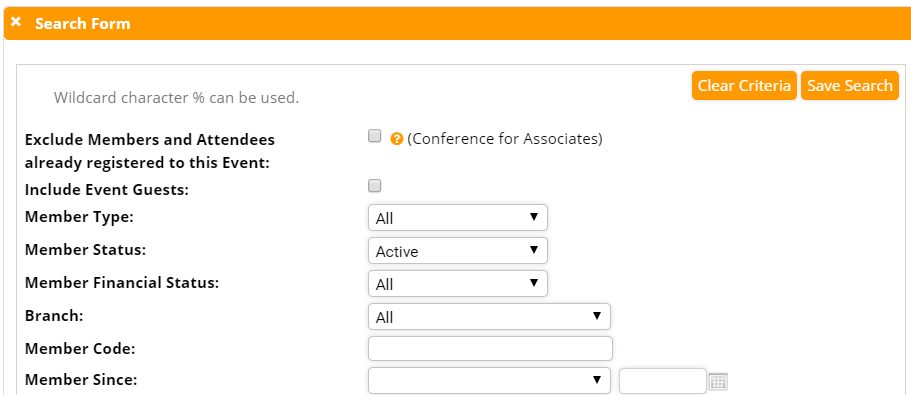
- When you are happy with your search parameters you can click Use Selected search to generate list of people to send your event distribution to
Distribution of Text Messages
The distribution screen will display:
Subject: This will not display on your member's mobile phones but it is used by you to keep track of distributions
Contact Category: To further categorize and sort your distributions
Insert Person/Member Field: To put in a placeholder for the recipient's personalized details.
Type your message in the white box.
At the bottom of the page you can now schedule the date and time (in 15 minute slots) when you want the distribution to be sent. You can select either:
- Immediately; which will start at the next 15 minutes slot
- Set Schedule; where you specify the date and time you wish it to run
- Do Not Schedule; allowing you to come back to it later to complete the scheduling.
You can then select:
- ‘Exit’ is effectively a cancel button.
- ‘Preview with inserted fields’ will display the email content on the screen with an example including the fields inserted
- You can send yourself a test SMS(‘Send Test’). You will be able to type in a phone number to use as a test.
- ‘Save’ will add a record to the Distribution Scheduler and you will be immediately redirected to that screen and your distribution will send or wait until the scheduled time to send
To contact MessageMedia and get started using SMS features please visit https://messagemedia.com/au/
Comments
0 comments
Please sign in to leave a comment.