
To move a person from one Membership to another Membership. Locate the person record
on the People tab of their current membership:
- Locate the membership, navigate to the 'people tab' then click the drop-down on the right hand of the person you would like to move
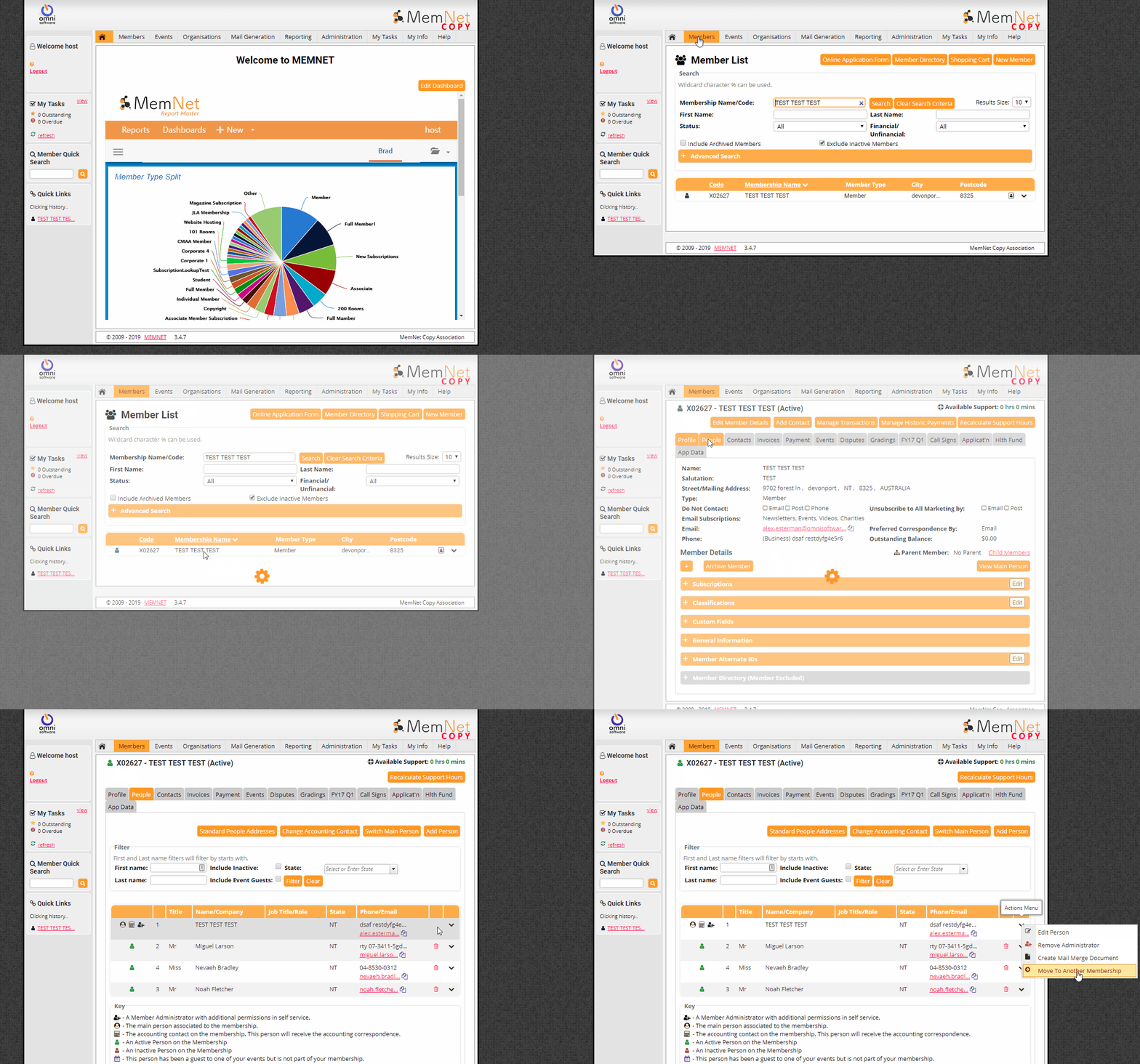
- Select Move to Another Membership from the drop down list
- You will be asked:
- would you like to Move Addresses with Person (if not the address will change to that of the Main Person on the new Membership)
- would you like to Move Persons Self Service Login. If not selected the person will need to register to be able to access their details in self-service on the new Membership record. This option will be greyed out if the person does not have a login
- would you like to Move invoices and event bookings where this person is set as the contact. If this person has paid invoices or made event bookings where they are the contact, these invoices and bookings can be moved from the current membership to the new membership with them. If they are not moved then the invoices and bookings will be reassigned to the accounting contact of the current membership This option will be greyed out if this person is not the contact for any invoices or event bookings.
- Search for the membership to move the Person to by name or member code.
- Click Select next to the Member you want to move the person to. A confirmation pop-up will appear, click OK on the pop-up to complete the move. All of the person's personal details will be moved to the new Membership (if any of the other data such as email address or phone numbers need to change you will need to amend this once the person is moved).
See also:
Comments
0 comments
Please sign in to leave a comment.