
Your members can renew their subscriptions with a single click. You can send a distribution to your members and each member will receive a unique link to renew their membership. Upon clicking this link the member will be able to renew their subscriptions, optionally add a donation to their purchase and pay their subscription.
IMPORTANT NOTE: After building your required list of recipients (including selecting the relevant subscriptions) you must save the search and use a Saved Search to send the distribution. Single click renewal links work only when subscriptions are included in the criteria and a Saved Search is used to send the email.
Designing the email
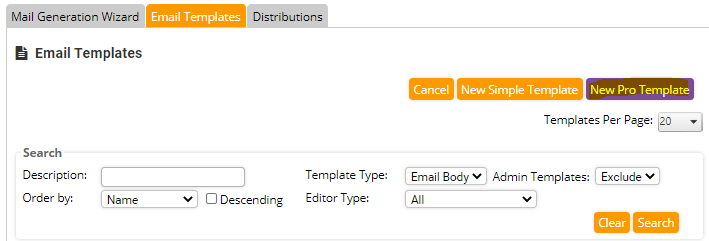
You can design an email template using the MemNet Pro Editor. You will find this under Mail Generation > Email Templates
Once you have designed the template you can add the link using Special Links. If editing Text, these are available on the toolbar - select the text that you want the link to be applied to or add a button to your email and add the link as follows:
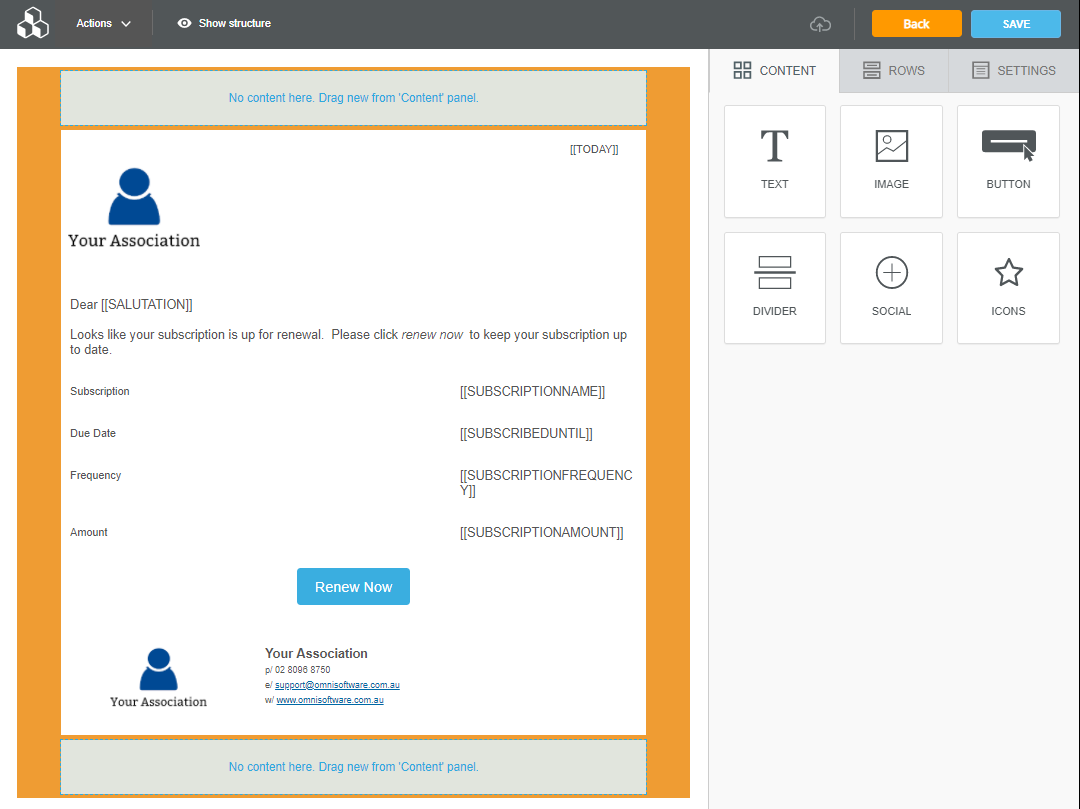
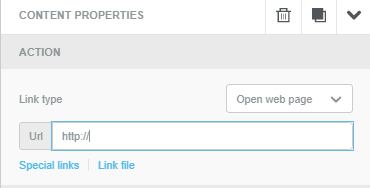
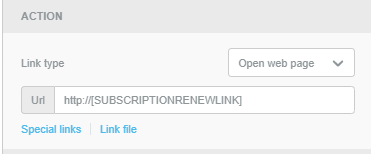
To add the unique renewal link to the button, click on the button and on the right-hand side, select "Special Links"
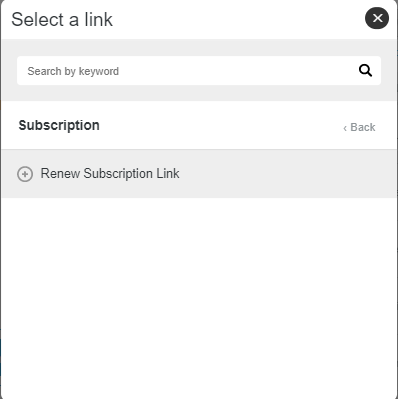
From the Menu select "Subscription" and then "Renew Subscription Link"
This will populate a button link as follows. This will be replaced with the unique link when the email is sent.
Distribution of this Email Template.
You will distribute the renewal email to your members through the Mail Generation Wizard.
Click "Mail Generation" at the top of your MemNet Screen.
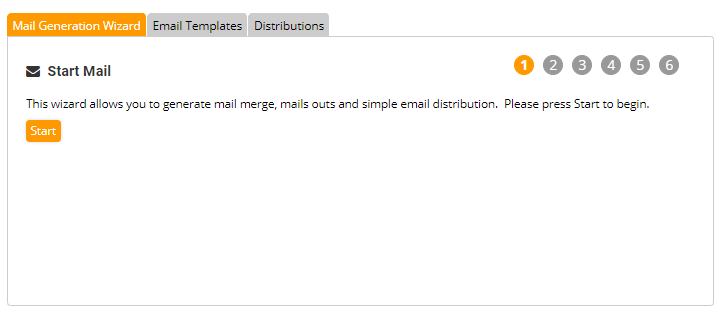
Select Email Type.
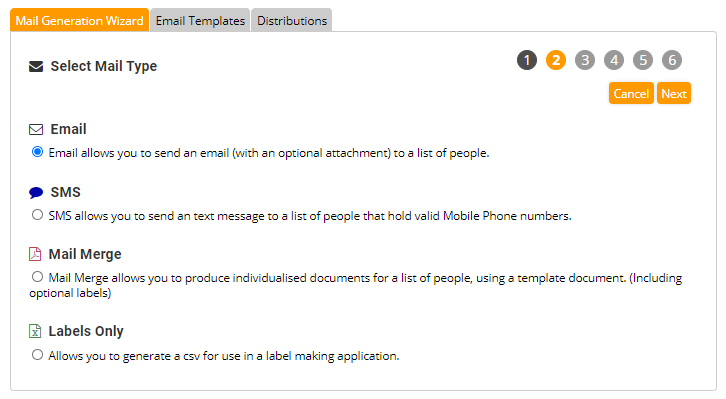
This is not a Marketing Communication
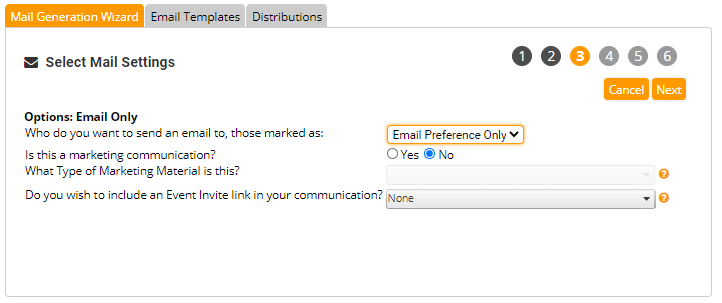
In the Recipient Search you must select member subscription in the search form. You can also select "Check All" to send renewal emails to members of all subscriptions.
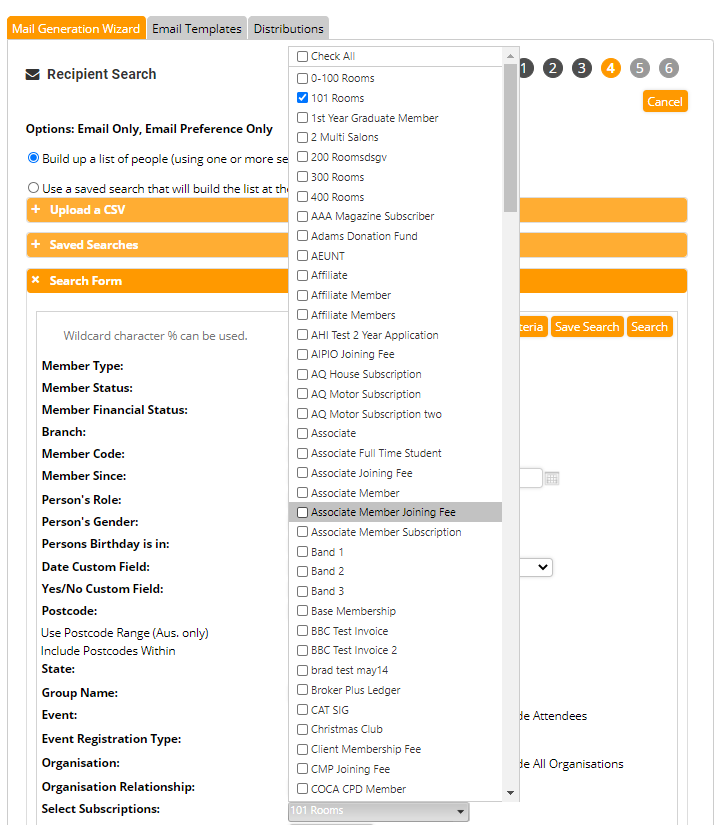
After you have selected the subscriptions you wish to send renewal invitations for, and added any further search filters found in the search form click Save Search.
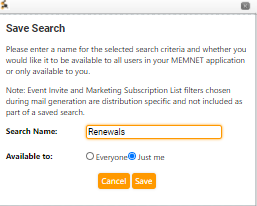
Give the Saved Search a Name and assign a level of access.
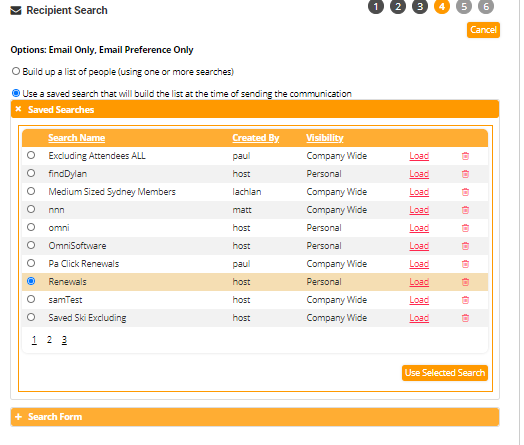
The page will reload. Select your newly created Save Search and click Use Selected Search.
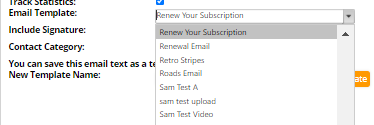
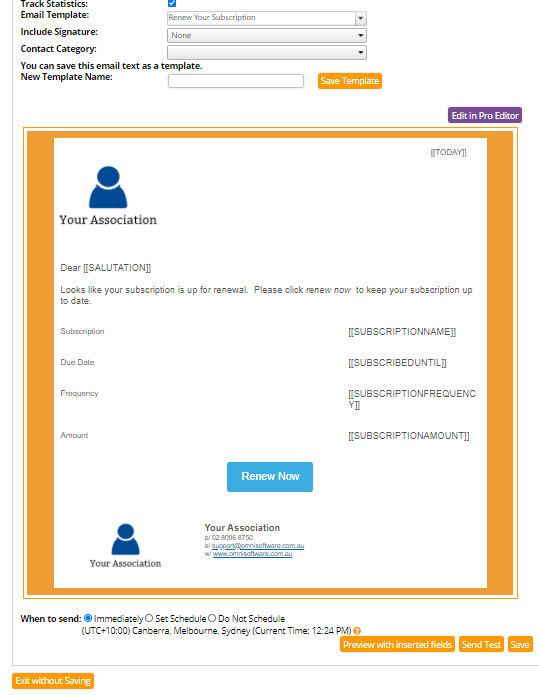
Select the template you created earlier in this tutorial from the Email Template drop-down menu
Schedule an appropriate time to send the distribution and click save.
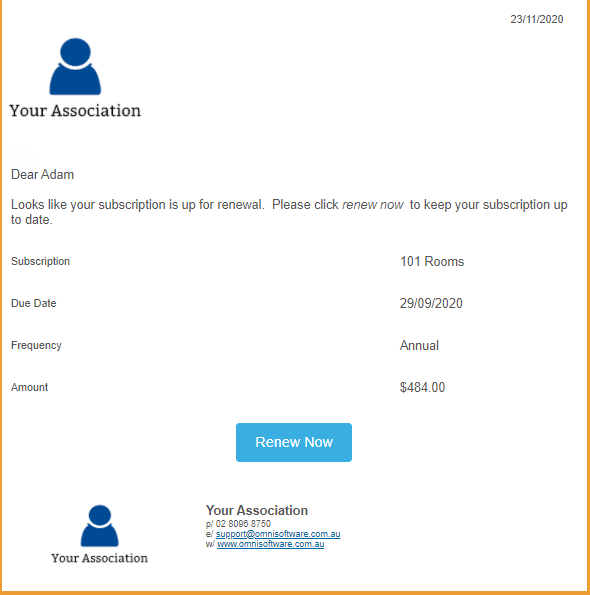
Your Member's Experience
When the email is sent this is how it will look for your member.
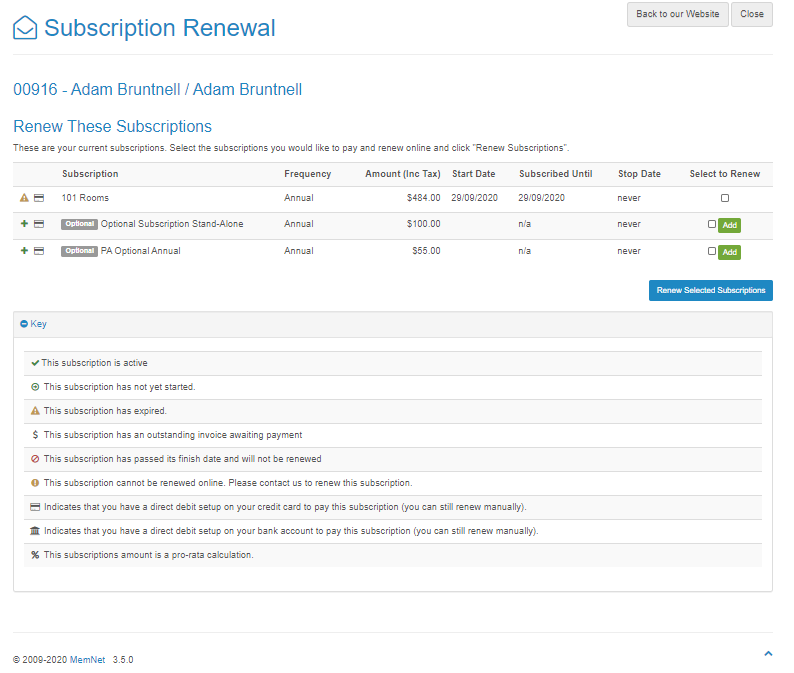
Upon clicking "Renew Now" The member will be taken to this screen.
The Member can select their existing subscription to renew and add Optional Subscriptions onto their membership if necessary and click Renew Selected Subscription.
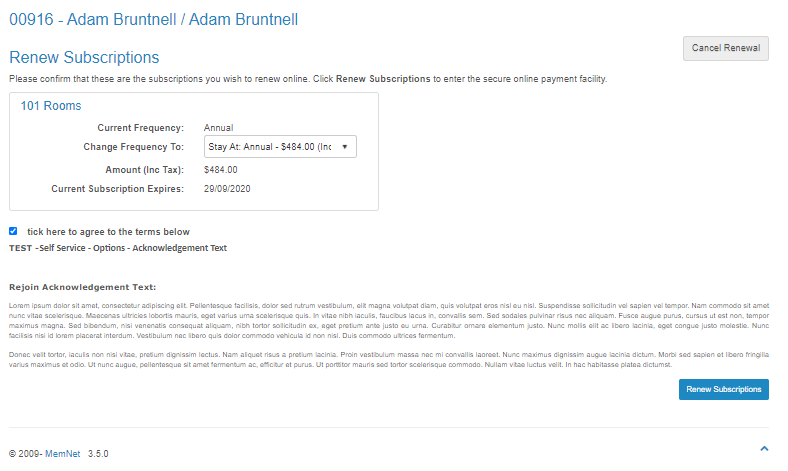
The member will be able to change their frequency if there is multiple frequencies offered by the subscription.
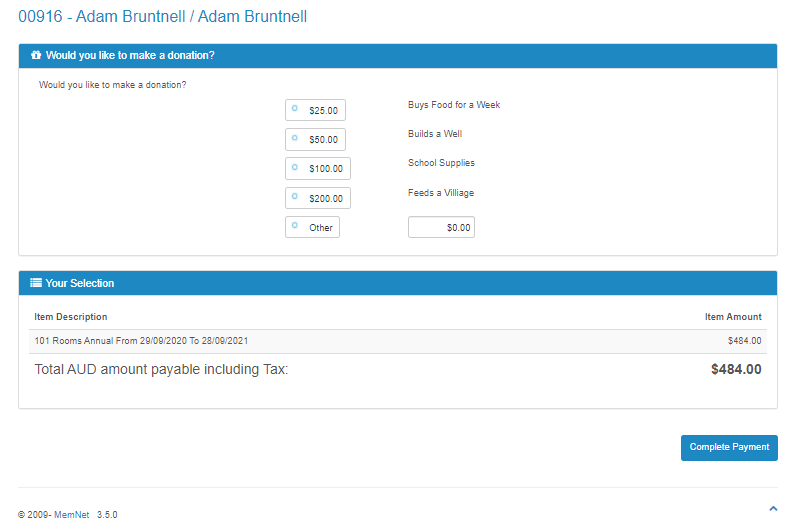
The Member will then be able to add a Donation to their purchase.
The member then selects Complete Payment to enter their credit card details.
You can automate the sending of these emails using a recurring distribution.
Related Articles
Comments
0 comments
Please sign in to leave a comment.